Summary
There are many options players can tinker with to customize their experience. To access the Options menu:
- Press CTRL O on the keyboard
- Open your Paperdoll and click the Options button
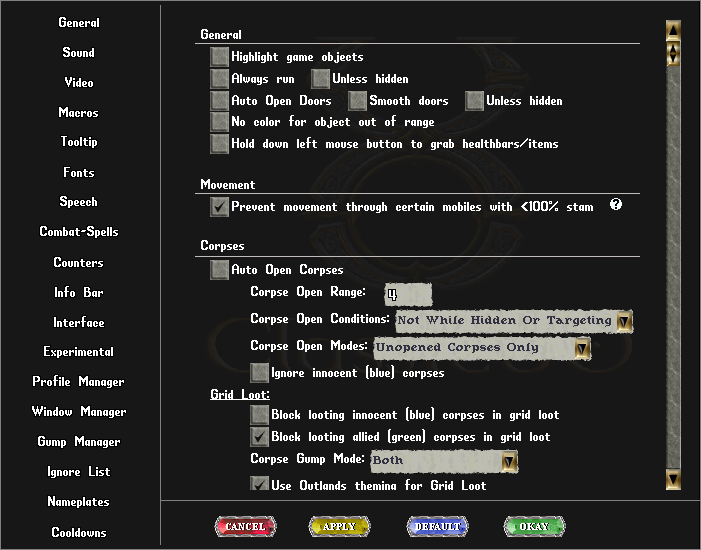
General
| General
|
| General
|
- Highlight Game Objects
- Always Run
- Auto Open Doors
- Smooth Doors
- Unless Hidden
- No color for object out of range
- Hold down left mouse button to grab healthbars/items
|
| Movement
|
- Prevent movement through certain mobiles with <100% stamina
|
| Corpses
|
- Auto Open Corpses
- Corpse Open Range
- Corpse Open Conditions
- Always
- Not While Targeting
- Not While Hidden
- Not While Hidden or Targeting
- Corpse Open Modes
- All Corpses
- Unopened Corpses Only
- New Corpses in Range Only
- Ignore innocent (blue) corpses
- Grid Loot
- Block looting innocent (blue) corpses in grid loot
- Block looting allied (green) corpses in grid loot
- Corpse Gump Mode
- Only Corpse Gump
- Only Grid Loot
- Both
- Use Outlands theming for grid loot
- Auto close grid loot when no items
- Miscellaneous
- Query before attempting to loot an innocent (blue) corpse
- Color corpse gump by notoriety
- Show incoming new corpse
|
| Mobiles
|
- Show HP
- Mode
- Always
- Less than 100%
- Smart
- Highlight Poisoned
- Highlight Paralyzed
- Highlight Invulnerable
- Show Incoming New Mobiles
- Lock Rename Follower (Ctrl + Alt to rename)
- Aura Under Feet
- None
- Warmode
- Ctrl+Shift
- Always
- Hide Helmets in Paperdoll
- Hide Equipment Slots
- Adjust friendly non-human mobile opacity
- Limit friendly non-human mobile size
|
| Gumps & Context
|
- Disable the Menu Bar
- Hold ALT key + right click to close Anchored gumps
- Hold ALT key to move gumps
- Close all Anchored gumps when right click on a group
- Use standard skulls gump
- Hold Shift for Context Menus
- Hold Shift to split stack of items
|
| Miscellaneous
|
- Enable circle of transparency
- Transparency type
- Maximum transparency
- Outline impassable objects affected by CoT
- Hide "Screenshot stored in" message
- Objects alpha fading
- Text alpha fading
- Show target range indicator
- Inform when stats change
- Inform when skills change
|
| Health Bars & Drag Select
|
- Health Bars
- Use custom healthbars gump
- Opaque background
- Close healthbar gumps when
- None
- Mobile out of range
- Mobile is dead
- Disable extended party health bars
- Save followers healthbars on logout
- Keep Followers HP bar at the same place
|
| Title
|
Description
|
| General
|
|
| Sound
|
|
| Video
|
|
| Macros
|
|
| Tooltip
|
|
| Fonts
|
|
| Speech
|
|
| Combat-Spells
|
|
| Counters
|
|
| Info Bar
|
|
| Interface
|
|
| Experimental
|
|
| Profile Manager
|
|
| Window Manager
|
|
| Gump Manager
|
|
| Ignore List
|
|
| Nameplates
|
|
| Cooldowns
|
|
Videos